Automatic video subtitles can save hours of first-pass transcription, but they do not make a video publish-ready on their own. Speech recognition may mishear a product name, divide a sentence at the wrong moment, or place text over the very action the viewer needs to see. The useful workflow is automatic draft, human correction, readable styling, and a real export check. That sequence gives a marketing team speed without sacrificing accuracy.
This guide explains how to add subtitles to videos automatically, when to import an existing caption file, and how to decide whether captions belong in the exported frame or as a separate file. In Dika Studio’s browser video editor, auto-subtitles transcribe selected clip audio with an on-device speech-recognition model and place timed cues on a subtitle track. The feature is part of a staged Studio rollout; access depends on workspace availability. The method below also applies to teams using other tools, but product-specific steps refer to Dika Studio.
Decide what the subtitles must accomplish
Subtitles can serve several goals: making speech understandable without sound, improving access for people who cannot hear the audio, helping viewers follow a presenter with a strong accent, or providing a translated version for another market. Those goals overlap, but they do not produce the same file. Same-language captions should include accurate spoken words and may need meaningful sound cues. Translation requires a reviewed source transcript and a native-level language pass. A few auto-generated English lines are not a full localization process.
Write down the video destination first. A social ad may need visible captions because the viewer sees it in a muted feed. A training video may benefit from a selectable subtitle file so viewers can turn captions on or off. A product-page video may need both a readable built-in version and a separate text track for accessibility, depending on the player. Check the actual platform’s supported caption formats and safe areas rather than choosing a workflow solely because the editor offers a button.
Define who owns accuracy. A model can create a draft; someone who understands the product must verify technical terms, prices, offers, and names. A language reviewer should approve translations. A designer should check layout. One person may hold several roles on a small team, but the decisions still exist. When captions change a claim, the review is editorial and legal, not merely cosmetic. A price transcribed as “fifteen” instead of “fifty” is a business error.
Captions, subtitles, and on-screen titles are not interchangeable
Subtitles usually represent speech; captions may also describe relevant non-speech audio. An on-screen title is a designed message, not a transcript. Keep those layers separate in your plan. If a narrator says “Choose the blue variant,” the subtitle should reflect the speech. A title might instead say “Three colors available.” Do not ask the speech recognizer to invent marketing copy or try to style every caption like a headline. Each text layer needs its own purpose and approval.
For short-form marketing, prioritize legibility over decorative animation. A caption should appear when the corresponding words are spoken, stay long enough to read, and avoid covering the subject or call to action. If a speaker talks too quickly for readable captions, consider trimming the voiceover or extending the shot. Making type smaller is rarely the right fix. Captions should help the story, not create a second stream of competing information.
Prepare the audio before transcription
Automatic transcription begins with sound quality. Listen to the selected clip before running subtitles. Is the dialogue louder than the music? Does room noise obscure consonants? Are two people talking over each other? A model may still generate text from poor audio, but the correction burden grows. If the source recording can be improved, do that first. A clean re-record of one sentence may take less time than repairing many mistaken cues.
Keep source audio and music on separable tracks where possible. If a voice is baked into a loud music mix, transcribing and reviewing becomes harder. Dika’s editor includes audio tracks and a mixer, so a team can balance speech before final export. Noise removal is available, but it should be checked by listening; do not assume a toggle fixed a noisy clip. For critical dialogue, test transcription on a short representative section before processing the entire video.
Make a reference transcript for names and claims. It can be a simple document listing product names, acronyms, speaker names, numbers, and approved phrasing. The recognizer does not know that an unusual brand spelling must remain exact. This glossary turns review into a targeted pass. It also helps translators later, because they can distinguish a proprietary name from ordinary speech. Keep the transcript tied to a specific video version so edits do not leave captions behind.
If there is no speech in a scene, do not force subtitles into it. A meaningful sound cue may still deserve a caption for accessibility, such as “[door opens]” when that sound advances the story. But a purely musical background does not require invented dialogue. The viewer may need an on-screen explanation instead; that is a separate creative choice. Decide at the storyboard stage which scenes need speech, captions, and designed text so none are added as an afterthought.
Generate a first caption pass in the editor
Select the clip containing the dialogue in Dika’s video editor, then run auto-subtitles. Choose a model size and language, or start with automatic language detection. The transcription result appears as timed cues on a subtitle track. The model is downloaded to the browser and cached for later use; transcription runs on the device. That is useful when a team wants an on-device first pass, but it is not a guarantee that every transcript is accurate or that every browser and machine will behave identically.
The model-size choice trades speed and potential accuracy. A small, fast model can be suitable for a clear short clip. A larger model may help with difficult speech, but still requires review. If auto-detect chooses the wrong language, select the intended language and rerun the draft. For a multilingual recording, a single pass may struggle at code-switches or names. Break the work into logical clips or correct the cues manually. Do not publish an incorrect transcript merely because it was generated quickly.
After the first pass, play the clip while reading the subtitle track. Check start and end times against speech. Look for missing words, repeated filler, joined speakers, and long lines. Review numbers separately; automatic systems often turn “one fifty” into a form that changes meaning. Check punctuation when it affects the claim. The goal is not to reproduce every hesitation, but to preserve what was said without adding a promise the speaker did not make.
If you already have an approved transcript in SRT or VTT format, import it rather than generating a fresh version without a reason. Dika’s subtitle track can accept those files. Confirm timing against the current edit, because a script approved before trimming may no longer align. Auto-generated batches can also be downloaded as SRT or VTT for use elsewhere. Treat that export as a starting point unless a human has checked it. A file format is not a quality stamp.
Correct meaning before styling the text
Work through the transcript in two passes. First, correct words and meaning: names, products, numbers, dates, legal qualifiers, and any instruction the viewer might act on. Second, improve segmentation and timing. If you style too early, every wording change may shift line breaks and make the layout work obsolete. Keep the corrected transcript close to the approved source script, but do not silently “improve” a speaker’s claim beyond what the recording actually says.
Read the captions without audio to see whether they form coherent sentences. A cue ending after “not” can reverse meaning until the next line appears. Break around phrases, not arbitrary character limits. Keep related words together and avoid leaving a single short word stranded. Make the timing comfortable enough for a person to read, especially on mobile. A fast caption stream can increase cognitive load even when every word is technically correct.
Where two speakers alternate, identify them when the visual does not make the change obvious. Include meaningful non-speech sounds when they affect comprehension. Do not overload every cue with descriptions of background music that contributes nothing to the message. Accessibility is not a matter of adding the maximum number of words; it is providing equivalent information in a form viewers can follow. Ask a person unfamiliar with the video to watch with audio off and explain the main point.
Place captions where they do not hide the proof
Design the caption area around the subject and platform controls. On a vertical video, the bottom of the frame may already contain an app interface, description, or call-to-action button. Captions placed there can become partially hidden. Check safe areas with the actual platform layout. If the product action occupies the lower third, move the caption or reframe the shot. Do not cover a demonstration with the words describing that demonstration.
Use high contrast and a type size that survives phone playback. A subtle shadow or solid backing can help on moving footage, but avoid ornate effects that make reading harder. Keep line lengths short enough to scan quickly. Test light and dark scenes; a caption style that works over one background can disappear over another. Brand typography may be expressive, but body-level subtitle readability is a functional requirement. A plain, well-spaced style usually performs better than decorative letterforms.
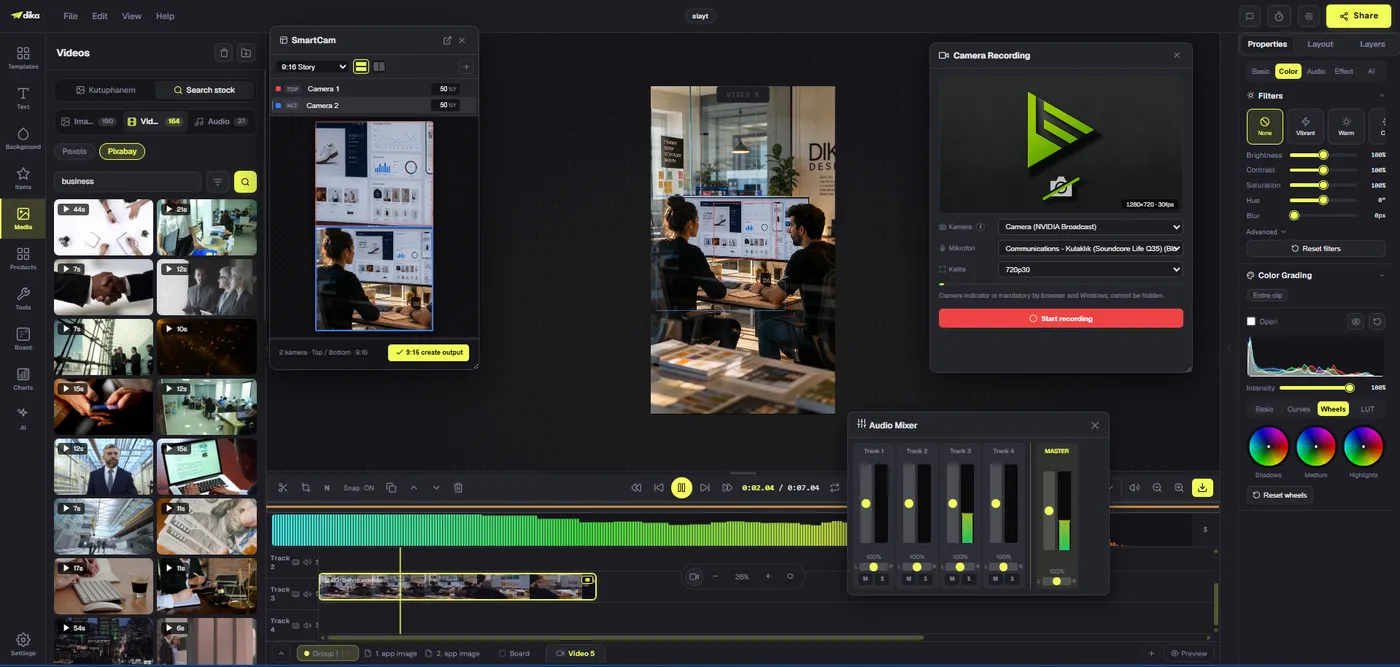
Dika’s timeline lets subtitles sit on their own track while video, overlays, and audio remain independently editable. This separation matters when the edit changes: move or trim a clip, then check whether its cues still match. Do not assume auto-generated timing survives a major re-cut. Review the complete video from start to end after changes, not only the modified scene. A shifted caption can remain wrong many seconds later if the timeline has changed.
Choose burned-in captions or a separate file deliberately
Burned-in captions become part of the picture. They are visible wherever the video plays, which can help on platforms with inconsistent caption support. They cannot be switched off or translated separately without making another export. A separate SRT or VTT file can support selectable language tracks when the destination player accepts it, but that file may be ignored by some social placements. Choose based on destination, not habit, and verify the result after upload.
| Delivery choice | Strength | Main limitation | Review step |
|---|---|---|---|
| Burned-in text | Visible in the exported frame | Cannot be toggled or replaced in the same video file | Check crop, safe areas, and every rendered cue |
| Separate SRT or VTT | Can support selectable captions and languages | Requires platform support and accurate sync | Upload and test in the real player |
| Both versions | Useful across mixed channels | More files and version control | Confirm the right asset reaches each placement |
In Dika’s editor, an active subtitle track renders into the video frame; muting that track allows an export without those captions. The generated cue batch can be downloaded as SRT or VTT. Name files clearly, including language and version. For example, a master video, a captioned social MP4, and an English SRT should not all be called “final.” If the spoken edit changes after the subtitle file is approved, both the embedded and separate versions need another timing check.
Handle translation as editorial work
Translation starts from a corrected source transcript. Do not translate raw speech-recognition output and hope errors disappear. A mistaken product term in the source can be reproduced in every language. Provide context to the translator: audience, product, purpose, pronunciation, terms that must remain untranslated, and any legal wording. Ask them to review captions inside the video, not only in a text file. A phrase that fits in English may be too long for the same on-screen interval elsewhere.
When the target language expands, shorten the surrounding visual text or extend the shot where possible. Avoid forcing the reader to choose between watching the product and racing through subtitles. Names and prices may follow local conventions; check them against the destination market. If the audio remains in the source language, clarify whether captions are translations or same-language access captions. Keep the files and approvals separate so the wrong language is not attached to an ad.
Verify the exported video and measure the result
Watch the actual exported MP4 on a phone and desktop. Check for clipped letters, missed accents, line breaks, overlaps with buttons, and captions that appear before speech. Play it once muted and once with sound. If a platform adds its own captions, avoid a double-caption stack. Inspect the first seconds and the call to action in particular; those moments often carry the main claim and next step. A preview inside the editor is not the same as a published placement.
Measure more than completion rate. Look at whether viewers reach the part of the video that explains the product, whether muted viewers can understand the message, and whether qualified actions improve after caption changes. Compare similar creative under similar conditions. Captions can help comprehension, but they cannot rescue a weak offer or a misleading proof shot. Use feedback to improve the next script, recording, and caption review process.
Subtitle publication checklist
- Source dialogue is intelligible and the correct clip was selected.
- Names, numbers, offers, and technical terms match approved copy.
- Every cue is aligned with speech and broken at a readable phrase.
- Meaningful sound cues are present where needed for access.
- Text remains legible on a phone and clear over moving footage.
- Captions do not cover faces, product actions, or platform controls.
- Language files are labelled and reviewed by the right people.
- Embedded and separate-caption versions are not confused.
- The exported file has been watched outside the editor.
- The destination player displays the intended version correctly.
Automatic subtitles are most useful when they remove repetitive typing while preserving a deliberate review. Generate a draft, correct meaning, refine timing and design, then test the real delivery. Explore Dika Studio’s video workspace for editing and caption workflows; see our text-to-video ad guide for the wider production sequence, or visit the Dika Design home page for our broader digital work.
Frequently asked questions
Can Dika Studio add subtitles automatically?
Yes. The browser video editor can transcribe selected clip audio on-device and place timed cues on a subtitle track, subject to staged workspace access.
Does automatic transcription send audio to a server?
In Dika Studio’s auto-subtitles flow, the recognition model downloads to the browser and transcription runs on the device. Review the current workspace behavior and privacy requirements before sensitive use.
Do AI subtitles need manual correction?
Yes. Check product names, numbers, offers, punctuation, speaker changes, and cue timing before publishing.
Can I import an existing subtitle file?
Yes. Dika’s editor accepts SRT and VTT files on a subtitle track. Verify timing against the current video cut.
Can I export subtitles separately?
The generated cue batch can be downloaded as SRT or VTT. Test the file in the destination player before delivery.
What is the difference between burned-in captions and SRT?
Burned-in captions are part of the video image. An SRT file is separate and may support viewer control or language choice where the platform accepts it.
How do I export a video without burned-in captions?
Mute the subtitle track before exporting the video, then verify the resulting MP4. Keep a clearly named captioned version if needed.
How should I caption fast speech?
Correct the transcript, split cues at natural phrases, and adjust the edit or narration when viewers cannot read the text comfortably.
Can automatic subtitles translate a video?
Transcription is not the same as a reviewed translation. Start with an accurate source transcript and use a qualified language review for another market.
Where should captions appear in a vertical ad?
Place them in a readable safe area that does not cover the subject, product proof, or platform interface. Test the actual published placement.