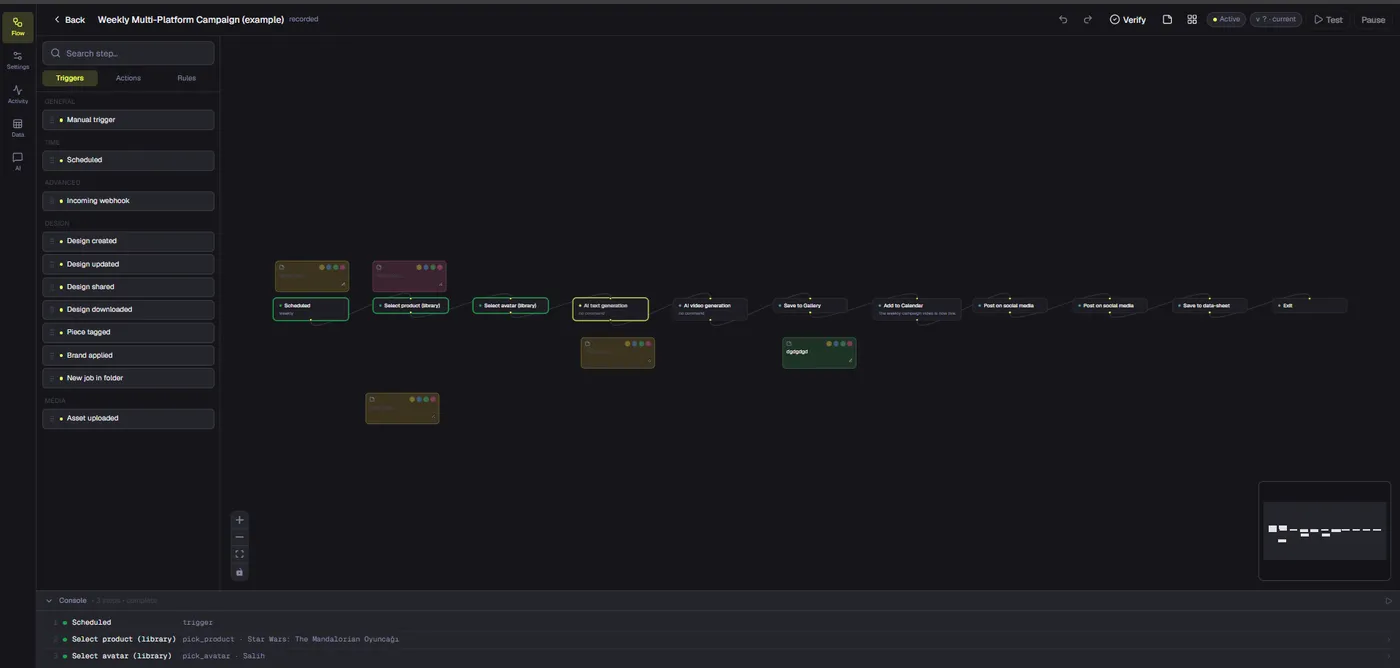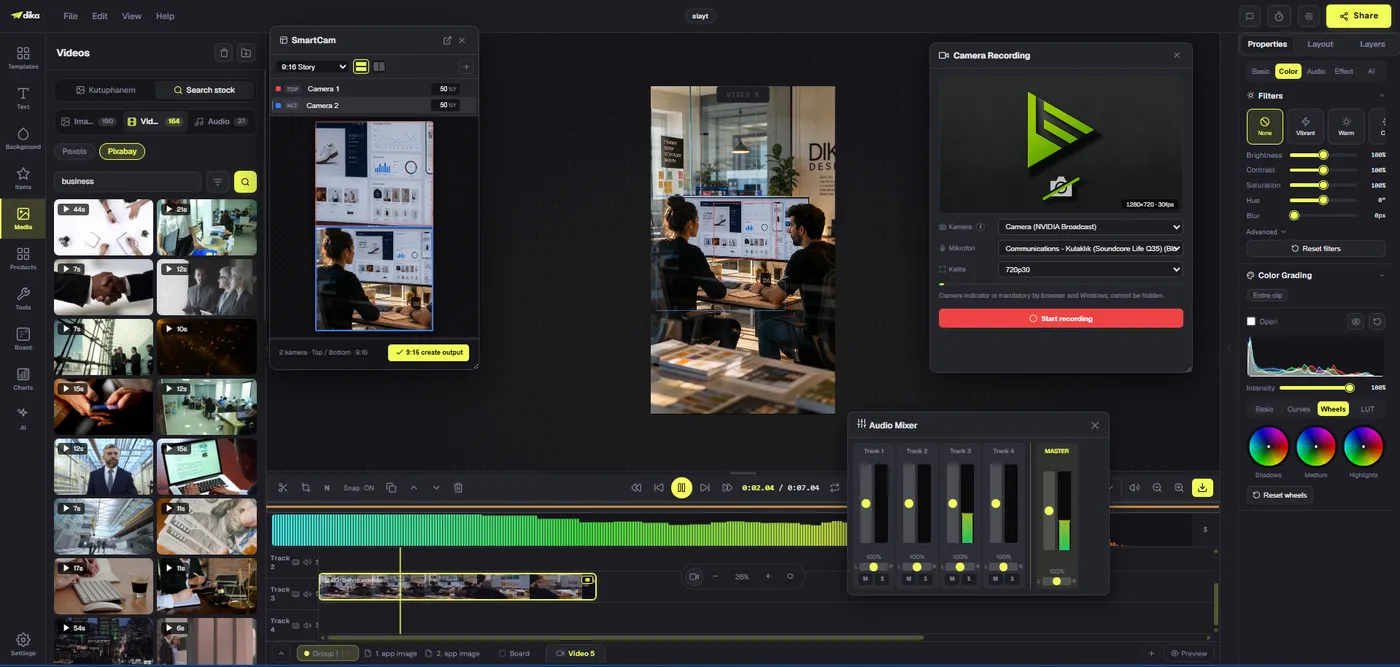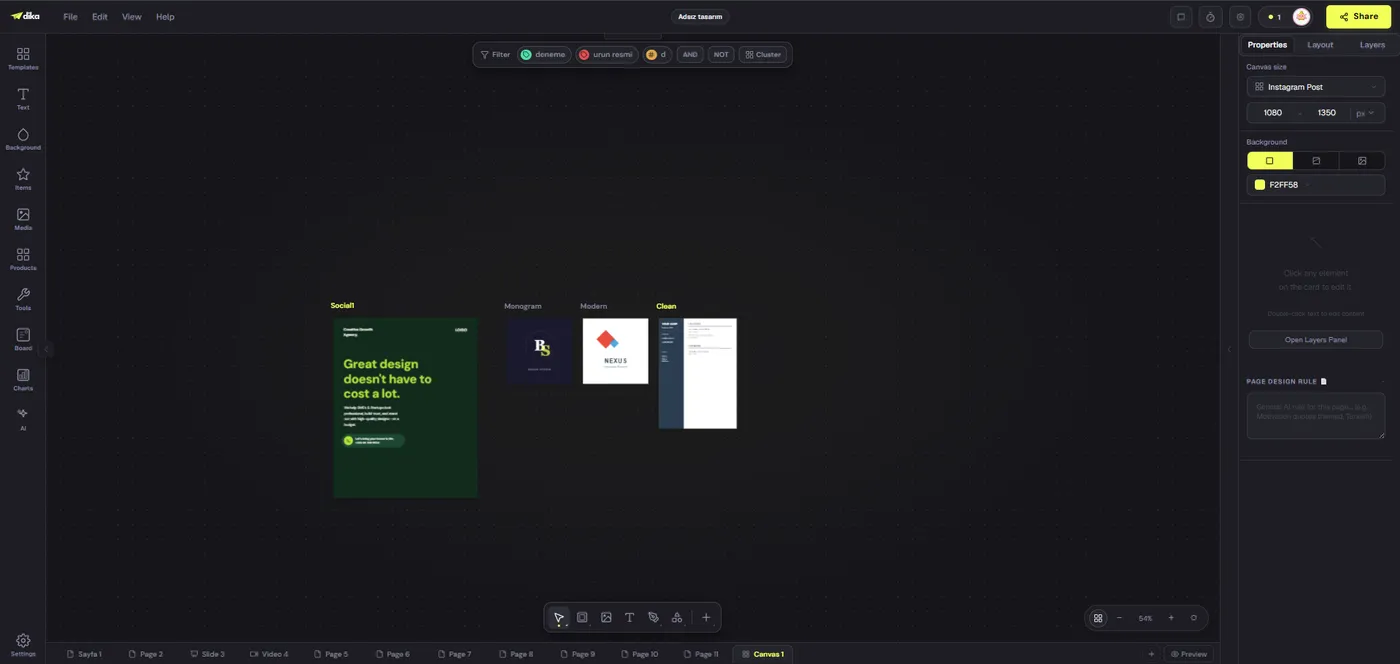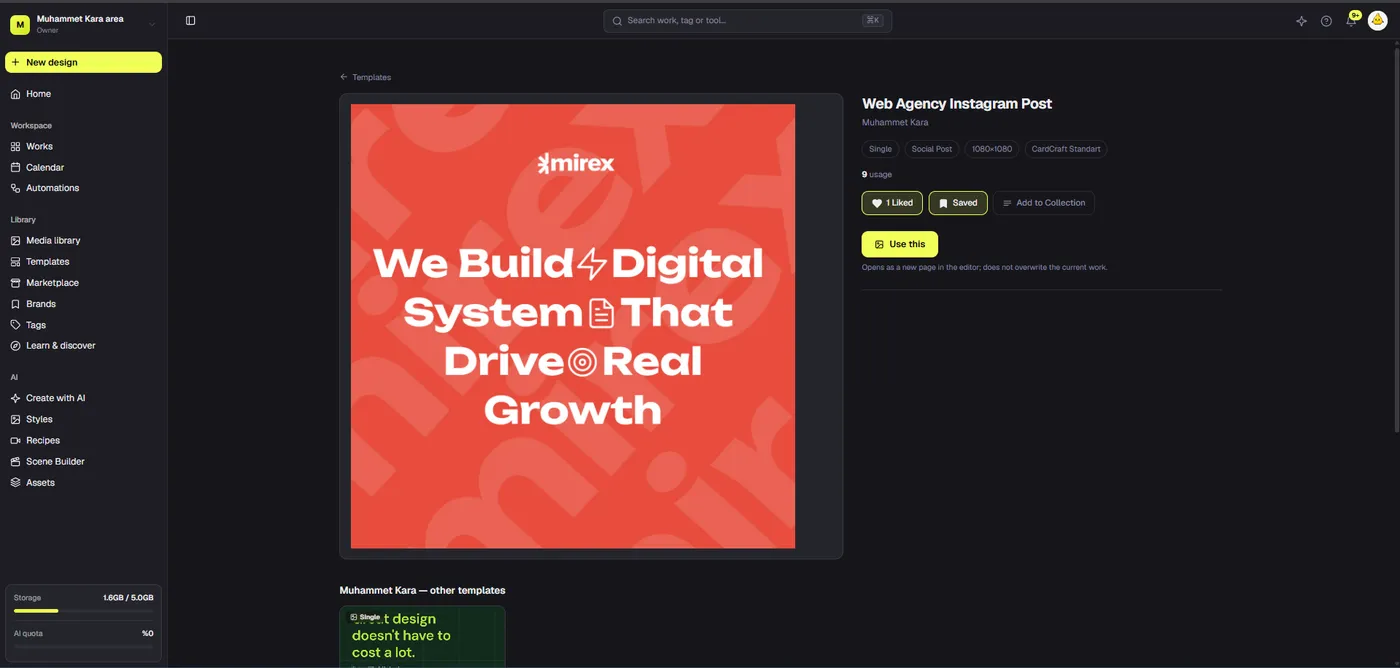
Canva, CapCut, and Dika Studio can all be relevant to video work, but they start from different workflows. Canva connects video with visual design and brand assets. CapCut centers on editing clips, adding effects and captions, and preparing social video. Dika Studio is described as a broader visual production workspace that brings video into projects alongside designs, presentations, boards, assets, and AI tools. Those distinctions matter more than a universal “best tool” ranking.
This comparison focuses on what each company currently documents, not on claims that one product produces better results. Canva and CapCut publish active product and help pages for video features. Dika’s official page currently says Dika Studio is pre-launch and inviting teams from its waitlist in small groups. Dika’s capabilities should therefore be read as documented product direction, not as a promise that every workflow is generally available today. Availability also depends on plans, regions, providers, and rollout.
Start with the work, not the logo
A video tool decision begins with the material your team has and the output it needs. Are you cutting recorded creator footage into short clips? Building product videos from branded layouts? Generating a scene from a prompt? Or managing a campaign where video must stay connected to a brief, brand kit, product references, and other creative assets? Similar-looking exports can come from very different production systems.
It also helps to separate an editor from a production workspace. An editor primarily helps you assemble and refine a video. A visual production workspace may connect video editing to other project surfaces and shared resources. Canva and CapCut both include more than one kind of tool, while Dika Studio’s public positioning is broader than video editing alone. That framing describes product emphasis; it does not mean one app cannot perform tasks outside its main focus.
For teams handling a wider digital project, video may sit beside the storefront, campaign design, or content system. Dika Design’s work across websites, e-commerce, growth, brand, and content systems provides that broader business context. This article compares software workflows, not agency services, but the distinction matters when deciding whether the team needs another editing tool or support connecting content to the rest of its customer journey.
Canva vs CapCut vs Dika Studio at a glance
| Tool | Documented center of gravity | Video capabilities to evaluate | Availability note |
|---|---|---|---|
| Canva | Visual communication and branded design across formats | Multi-layer timeline, templates, captions, AI-assisted editing, and AI video generation | AI feature access and usage allowances depend on plan |
| CapCut | Video editing and social-oriented creation | Timeline editing, effects, templates, captions, text-to-speech, and AI-assisted video creation | Some features and materials vary by region, device, account, or license |
| Dika Studio | Visual production workspace connecting multiple creative surfaces | Video timelines and documented AI video workflows, plus projects, designs, presentations, boards, and shared assets | Pre-launch; access and feature availability depend on rollout and configuration |
The table is a starting point, not a feature-completeness score. Product pages change; plan entitlements, model access, and interface details can differ by account or location. Before adopting a tool, confirm the specific feature in your account and test it with a representative project. For Dika Studio, first confirm whether your team has access during the pre-launch rollout.
Canva: video inside a visual-design workflow
When the deliverable mixes formats
Canva’s video editor sits within a visual communication platform used for designs across formats. That can suit a team whose video is one part of a larger set of campaign assets: social graphics, presentations, product pages, or branded layouts. Canva’s editor page describes a multi-layer timeline, hook templates, caption generation, AI-assisted clip selection and sequencing, and text-prompt video features. The precise set of tools available to a user still depends on the plan and current product access.
That design context can matter when people building the video are also responsible for brand consistency. Canva’s Brand Kit documentation describes storing logos, colors, fonts, and assets for team use in the editor. Its caption workflow adds editable captions to a video timeline and offers styling options. Those features are relevant when the output needs both visual polish and familiar branded components; they do not remove the need to check timing, contrast, legibility, and export quality.
Canva also documents AI features for video, including Magic Video and creating a video clip with Canva AI. Its help center currently classifies “Create a video clip with Canva AI” as an Ultra AI tool and says AI availability and allowances depend on plan. So “Canva includes AI video” is not the same as “every Canva account can use every AI video feature without limits.” Check the current Canva AI usage guidance before building a workflow around a particular generation feature.
Where a design-first workflow may be less direct
If the job begins with hours of recorded footage and requires detailed clip selection, dialogue cleanup, or repeated timeline adjustments, compare the editing experience against your team’s actual workload. Canva documents timeline editing and AI assistance, but the feature list alone cannot tell you whether its controls match your editors’ preferred pace. Bring a real piece of footage into a trial workflow and measure the number of manual steps, corrections, and handoffs.
Canva is not limited to manual editing: its official page lists AI-assisted video tools alongside standard editing. Conversely, a template-based starting point does not guarantee that a finished video will match a brand brief. Review generated scenes and captions rather than assuming that a fast first draft is a final deliverable. For teams making recurring product assets, the storefront and e-commerce experience around a video may also shape the decision: the clip may need to work with product information, landing pages, and campaign messaging beyond the canvas.
CapCut: video editing and social-content production
When the starting point is footage
CapCut’s official product pages describe a video-centered workflow with imported media, templates, effects, transitions, text, and export controls. They also list AI-supported features such as auto captions, text-to-speech, background removal, scene editing, and prompt- or script-based video creation. Its online auto-editor page describes turning longer footage into shorter vertical clips, then reviewing and refining captions, timing, and visual style. This makes CapCut worth evaluating when the regular task is shaping footage into social-ready edits.
Those capabilities span more than one use case. A creator might cut a filmed product demonstration and add captions; a marketer might use AI features to develop a scripted video with an avatar; an editor might start from a template and refine the result on a timeline. CapCut’s current pages do not make those workflows identical. Test the exact tool, device, region, and account your team intends to use rather than relying on the name “CapCut” as a complete description of one fixed feature set.
CapCut’s official AI editor page describes a script-to-video flow that can use an AI avatar, generated voiceover, caption templates, music, and further timeline edits. The same page warns that some features are available only in certain regions. That caveat is useful in procurement and production planning: a demo seen in one account or market may not match the tools available to another editor.
Where a video-first workflow needs broader context
Editing speed is only one part of a campaign. Teams also need to confirm who owns the source footage, whether the creator has approved the edit, which version of the product is shown, and where the finished content will run. A fast edit can still create problems if the music, template, logo, or person shown is not cleared for that commercial use or destination. Put those checks into the workflow rather than treating them as export-day administration.
For a team working across more than video, the question is whether project context must travel with the clip. Do product details, creative briefs, brand assets, and approvals live in the same production environment or elsewhere? The right answer depends on the existing stack. Dika Design’s broader technology and creative work is relevant when a team is considering how production relates to the wider website, commerce, or growth system; that is a separate question from whether CapCut’s editing controls fit the editor.
Dika Studio: a broader production-workspace direction
What its documented workflow includes
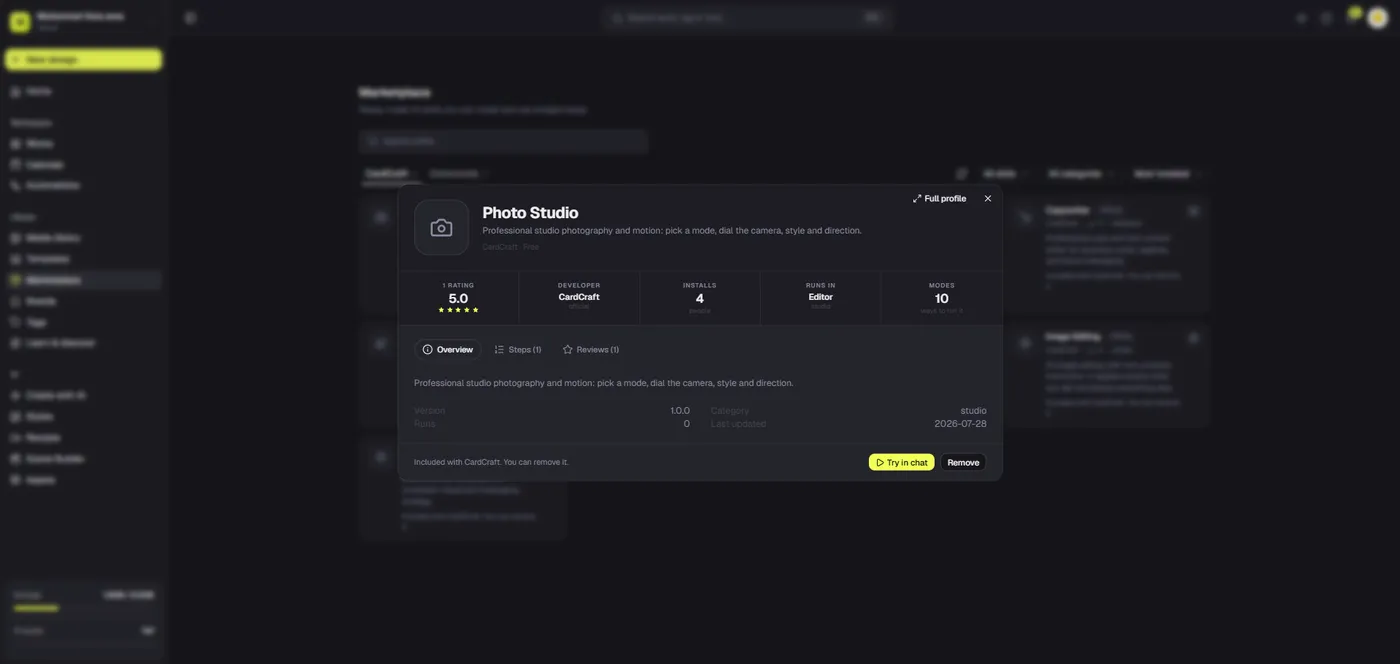
Dika Studio’s official page describes a visual production workspace for editable designs, videos, presentations, and campaign assets. Its stated product model connects work to shared projects, source assets, brand context, collaborators, and delivery. The page also describes a video timeline and supported AI providers for text, image, video, speech, and voice. These are product-positioning statements, not grounds for claiming that Dika offers every capability in every deployment today.
Dika’s Marketing Studio guide describes a guided video kit with 12 marketing modes, ready-made recipes, optional script generation, and reusable avatar and product references. The documented flow selects a mode or recipe, tunes the scenario, optionally drafts a prompt, and hands it to video generation. This can be relevant to a team that wants a repeatable starting structure for marketing clips rather than beginning every prompt from a blank field.
The docs also explain that Marketing Studio uses the connected chat provider to draft scripts and the selected video provider to generate clips. Dika’s provider and model matrix and video generation guide describe different provider capabilities. The practical implication is that “Dika Studio supports AI video” should not be read as a promise that every model, input type, duration, or generation feature works with every provider.
Why pre-launch status changes the comparison
Dika Studio’s official page currently describes the product as pre-launch and says teams are being invited from the waitlist in small groups. It also notes that surface availability can vary during rollout and that AI access depends on provider, model capability, workspace policy, plan, and deployment configuration. This is a meaningful difference from comparing two established editing products with currently accessible feature pages: some teams may be evaluating Dika’s stated direction rather than an immediately available production workflow.
For that reason, Dika Studio should not be presented as a drop-in replacement for Canva or CapCut today. A fair comparison asks whether a workspace connecting video with projects, designs, assets, and team workflows is useful to the organization—and then checks whether the required surfaces are available to that organization. If the team needs a tool this week, verify access and production readiness before building a schedule around Dika’s documented features. If it is evaluating future workflows, treat the waitlist and rollout as part of the decision.
The product page’s broader context may matter to teams that need design and video to stay connected to one campaign. It describes multiple project surfaces, reusable production skills, and team collaboration on supported surfaces. These features should be validated in the specific rollout offered to a team. A product overview cannot substitute for a working session with the intended users, their actual assets, and their approval process.
Compare the workflow, not just the feature checklist
Two tools can both list “AI video,” “captions,” or “templates” while solving different production problems. Compare each product against a real project with the same brief and output requirements. If AI generation matters, compare the full path from input to reviewable edit, not just the moment a clip appears. If collaboration matters, compare how a teammate finds source files, checks a claim, comments on a cut, and locates the approved export.
Use these questions to make the comparison concrete:
- What is the starting material? Is the work built from filmed clips, branded layouts, still product images, scripts, or generated scenes?
- What needs editing? Identify the actual operations: trimming, scene order, captions, color, audio, overlays, resize, or timeline-level changes.
- Which assets must stay connected? List product references, logos, fonts, source footage, scripts, approvals, and campaign variants.
- Where must the export go? Name each channel and format. Then check whether the tool, plan, and asset licenses support that destination.
- Who reviews the output? Decide whether one editor is enough or whether marketing, legal, product, or a client must comment and approve.
- What is available to this team? Confirm plan, region, device, provider, model, usage limits, and rollout status in the actual account.
For a small team making a handful of branded explainers, reducing handoffs may matter more than advanced timeline controls. For a creator team cutting daily footage, edit speed and repeatable caption operations may matter more than storing slides and project briefs beside each video. A team running a product campaign across multiple surfaces may prioritize reusable product details and shared review context. None of these preferences establishes a universal winner; they identify what to measure.
Budget and licensing belong in the tool comparison
Do not compare only subscription prices or claims such as “free editor.” Include the cost of generation, paid features, storage, review time, and asset rights. Canva’s current AI guidance says some video-generation tools use a plan-dependent AI allowance. CapCut’s pages also flag regional feature variation, and its materials license distinguishes between material categories and permitted uses. Dika’s documented AI workflow uses supported providers; check provider access, model support, and any separate provider costs before estimating a production budget.
Music and templates deserve their own review. Canva’s Content License Agreement separates content categories and includes specific restrictions for music; the applicable terms depend on the asset and use. CapCut’s Materials License Agreement describes material categories, territories, terms, and commercial permissions. In other words, access to a song or template inside an editor does not automatically mean that every export can be used in every paid campaign, market, or platform.
Make asset review practical. Record the source and license of each third-party track, template, stock clip, and image; check whether the permission covers advertising; confirm permitted platforms and territory; and save the relevant terms or clearance with the campaign record. If a provider’s terms are unclear for a planned use, select a clearly cleared asset or obtain separate permission. The exact legal effect of a license depends on its current terms and the intended use, so this comparison is not legal advice.
A fair side-by-side test for your team
Instead of choosing from feature pages alone, run a short pilot. Use one representative product or campaign brief, one approved set of source assets, and the same delivery requirements in each tool your team can access. Keep the test narrow enough to finish, but realistic enough to surface common corrections. The point is not to force identical workflows; it is to see which workflow fits your actual production.
- Write one brief. State the audience, goal, product facts, required format, call to action, and any claims the video must avoid. Use the same brief for each tool.
- Use cleared inputs. Prepare the same logo, product images, footage, script, and music—or use a cleared substitute. Do not upload assets unless the team has rights and permission to use them with that service.
- Build one short deliverable. Choose a typical clip rather than an ambitious launch film. Note whether the tool starts from a timeline, design layout, prompt, template, or structured marketing scenario.
- Review the actual output. Check factual accuracy, product fidelity, captions, audio, export dimensions, and any disclosure or approval requirements. Count corrections rather than judging only the first preview.
- Include the handoff. Ask another teammate to locate the source, comment on the edit, identify the approved version, and export or prepare the final clip. Record the steps that happened outside the tool too.
- Compare total effort. Include setup, generation, manual corrections, review, licensing checks, and delivery. A shorter generation time may not reduce end-to-end effort if the output needs extensive correction.
Document what the pilot did not test. One short clip cannot prove that a tool handles every language, product category, accessibility requirement, campaign scale, or approval chain. A second test may be warranted if the team produces both filmed creator content and generated product scenes, or if it relies on multiple providers. Make decisions from observed workflows and current account access rather than headline feature counts.
Choose by fit—and leave room to combine tools
Canva may be a sensible starting point when video belongs to a broader visual-design workflow, the team uses its brand and template system, and the required AI tools are available on the chosen plan. CapCut may be a sensible starting point when the central job is editing footage or building social video with its documented captions, effects, templates, and AI-assisted editing. Dika Studio may be worth evaluating when the organization wants a broader production workspace that connects video with other creative surfaces—but its pre-launch status makes access verification essential.
These choices are not always exclusive. A team might use one product to develop a design or campaign layout and another to refine footage. It could also keep a separate source-of-truth system for product details and rights. What matters is making handoffs explicit: who owns the source, which version is approved, where captions are checked, and which export is cleared to publish. Dika Design’s broader delivery model is one route to explore when those production questions connect to a website, commerce journey, or wider technology project.
There is no source-grounded basis here to call one of these products universally superior. The practical choice depends on the work, the people doing it, the content licenses, and the access available now. Start from a real brief, test the complete workflow, and include account-specific feature availability in the decision. For a team considering Dika, Dika Design’s product and business capabilities provide context, while the Dika Studio page and its Marketing Studio documentation explain the pre-launch product direction.
Frequently asked questions
What is the main difference between Canva and CapCut?
Canva connects video with a broader visual-design workflow; CapCut’s documented workflow centers more directly on video editing and social-content production.
Can Canva generate videos with AI?
Canva documents AI video features, including prompt-based video creation. Access and usage allowances depend on plan.
Can CapCut generate videos with AI?
CapCut documents script-to-video and other AI video workflows. Some features vary by region.
What is Dika Studio?
Dika Studio is described as a visual production workspace connecting editable designs, videos, presentations, campaign assets, and supported AI tools.
Is Dika Studio generally available now?
Its official page currently describes it as pre-launch, with teams invited from the waitlist in small groups.
Does Dika Studio replace Canva or CapCut?
This comparison does not establish that. Dika’s availability and documented workflow differ; verify access and test your team’s requirements.
Which tool is best for social-media video?
It depends on whether your team starts with filmed footage, branded designs, AI-generated scenes, or a larger campaign workflow.
Can I use editor templates and music in paid ads?
Check the current asset-specific license, commercial permissions, territory, and permitted platforms before publishing.
Should I compare only subscription prices?
No. Include AI allowances, provider costs, asset licensing, review time, and manual corrections in the pilot.
How should a team compare these tools fairly?
Use the same brief and cleared assets, produce a representative clip, review the complete workflow, and compare total effort and current access.