An AI presentation maker should help a marketing team turn a campaign brief into a clear, reusable deck, not simply fill slides with generic copy. The valuable work lies in selecting evidence, shaping a narrative, and making every slide legible when presented aloud. Dika Studio combines a slide-deck surface with shared project context and an in-editor AI assistant. It does not replace the judgment required to decide which claim belongs on stage. This guide shows how to build a campaign presentation, where AI assistance is useful, and how to review the final handoff without promising a one-click finished deck.
What a marketing presentation must accomplish
A campaign deck has a job beyond looking polished. It should make a decision easier. An internal launch review may need agreement on audience, positioning, channels, budget, and next actions. A client pitch may need evidence that a concept answers the brief and can be produced at the proposed cost. A performance readout may need to explain which assumptions held, which failed, and what changes next. Those are different narratives. Beginning with a slide template before identifying the decision often produces a deck that is attractive but hard to use.
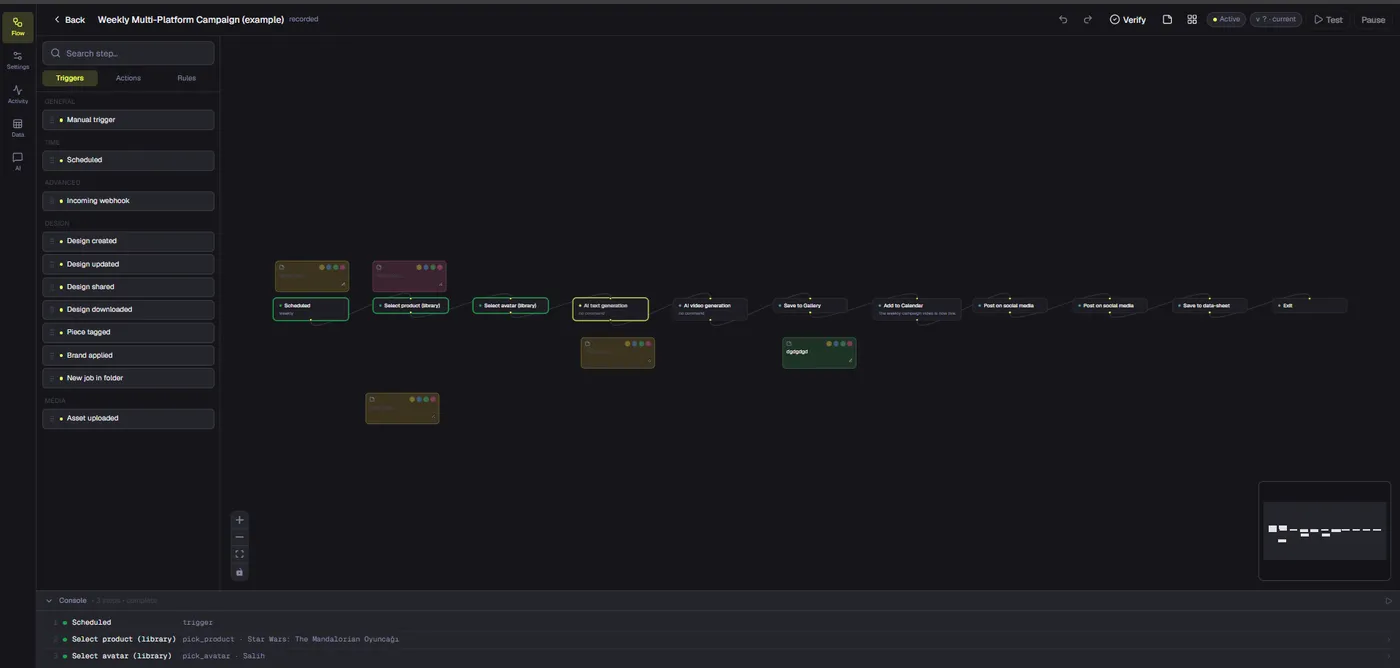
Write one sentence that names the audience and decision: “The regional team should approve a two-week test of the new product story for paid social.” Then identify the evidence required for that sentence to be credible. You might need customer research, a prototype, campaign examples, distribution logic, measurement criteria, and the cost of the test. That evidence becomes an outline. The slide layout follows it, not the other way around. When the presentation is built inside a shared creative project, related design pages, boards, media, and videos can remain available to the team rather than scattered across separate folders.
For a wider look at how our design and production work connects, start at Dika Design. The Dika Studio workspace is the product surface discussed below; it is currently pre-launch and access is being opened in stages.
Plan the story before opening the slide editor
Make a short narrative map. Start with context, move to the opportunity, show the proposed response, then define execution and decision. Keep one conclusion per slide. A headline such as “Three creator concepts cover the audience’s main objections” is more useful than “Creative concepts.” The first states a point; the second merely labels a category. If the argument takes several sentences to explain, split the slide or move detail into an appendix. The presenter should add nuance aloud instead of reading a crowded screen.
A practical eight-slide campaign spine is: decision request, audience problem, supporting insight, campaign idea, representative creative, channel plan, measurement plan, and next steps. This is not a universal formula. A skeptical finance audience may need cost and risk earlier. A creative workshop may need example assets before metrics. Rearrange the deck to match the decision-maker’s questions. Treat every slide as part of an argument rather than a slot to be filled. AI can suggest alternative headlines or summarize a brief, but the team must verify numbers, quotes, and product statements against their sources.
Build a source checklist
Before design begins, list the source of every factual claim: research date, campaign period, analytics report, owner of a forecast, and approval status for product language. Mark a claim as measured, estimated, or proposed. A generated phrase can sound certain even when the input was tentative. That makes provenance especially important in an AI-assisted workflow. If a chart is a projection, label it as a projection. If an image is a concept, say so. Keep the original data outside the slide so reviewers can inspect it without guessing which graphic was edited last.
Choose slide deck rather than a general design page
Dika Studio treats a slide deck as one part of a project. It has a filmstrip for ordering slides, per-slide transitions, and a presenter mode. To start, add a Slide part from the page tabs or choose a slide starter in the Templates panel. The available starting layouts include Blank Deck, Title Slide, and Split Layout. A new deck starts on a 1600 × 900 canvas. That wide format suits common screen presentations, but verify the room display and any platform where the deck will be embedded before final export.
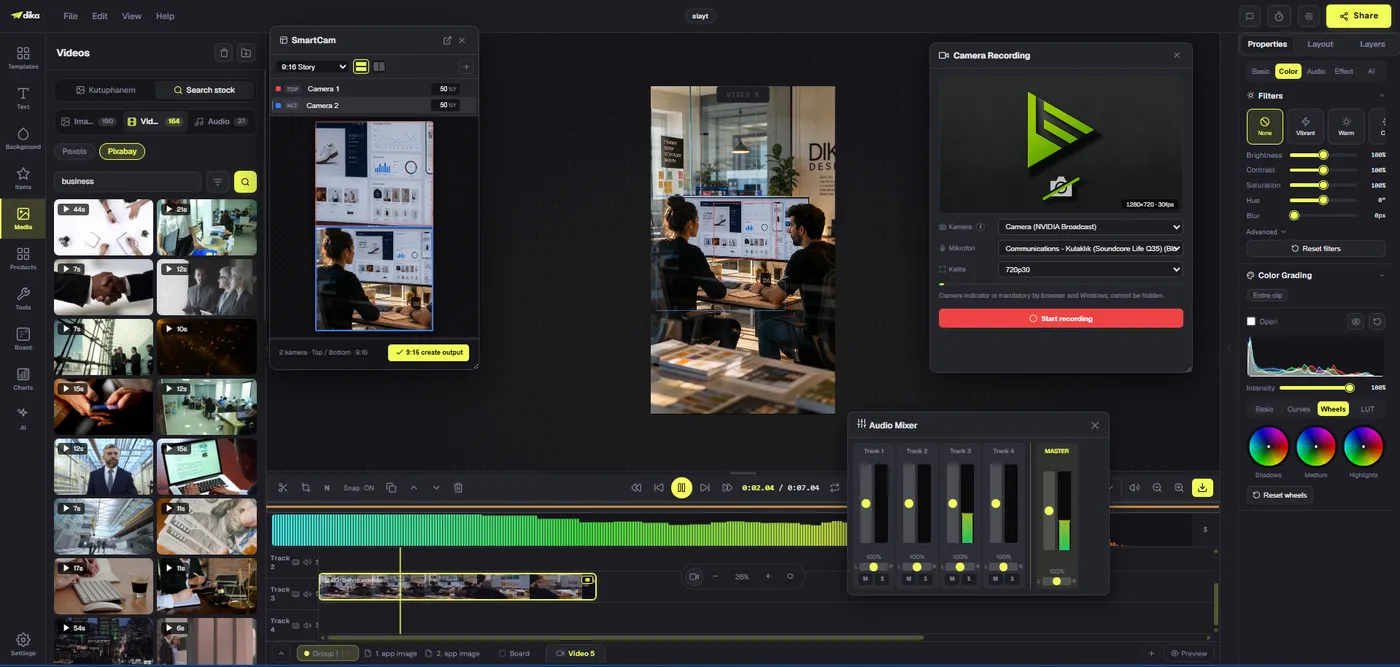
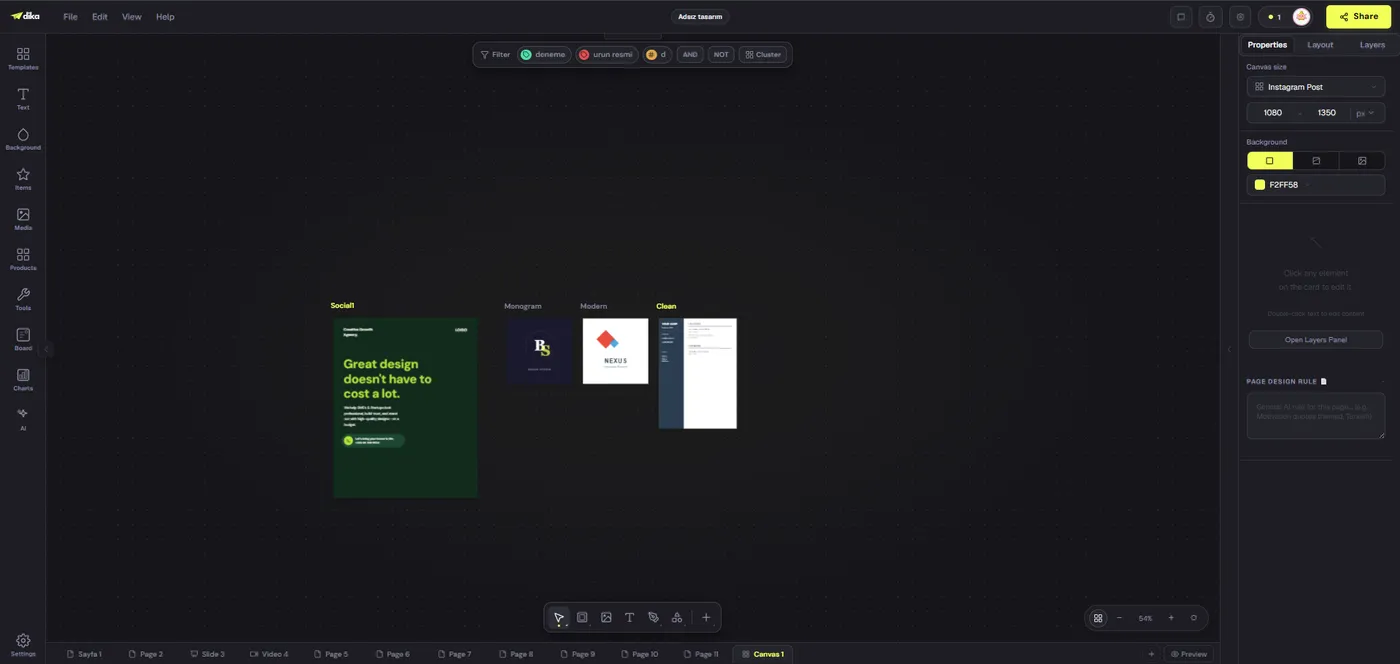
The deck lives alongside other creative parts in the same project. A team can keep an approved campaign graphic on a design page, an exploration on a board, and a video concept near the deck without pretending that the project is one monolithic file. This is especially useful when the presentation is an approval checkpoint in a larger production flow. A presentation may explain why a visual direction was selected, while the original asset remains editable in its own part. See our guide to brand kit workflows for the upstream brand decisions that should be settled before the deck is polished.
Use AI as a collaborator, not as a fact source
An AI presentation maker can be most helpful before and between design decisions. Ask for a sharper outline, five alternative conclusion headlines, a shorter paragraph, or a critique of whether the current slide supports its claim. In Dika Studio, the in-editor AI assistant can read design context and perform supported edits on a canvas when a configured provider and model are connected. It can also answer a design question or help with an image. Capability depends on the chosen provider and model. We do not describe this as guaranteed automatic generation of a complete campaign deck.
Work in small, inspectable requests. For example: “Rewrite this slide headline as a decision statement without changing the statistic,” then review the result. Or: “Suggest a simpler two-column layout for the opportunity slide,” then adjust the canvas manually. Avoid asking the assistant to invent performance evidence, customer quotations, legal claims, or product specifications. Prompting more forcefully cannot turn an unverified claim into a reliable one. Add a reviewer check after any AI-generated copy, especially when a deck will leave the marketing team. Dika Studio’s AI assistant guide explains current canvas actions and provider setup.
A useful prompt pattern
Give the assistant a constrained task: identify audience, decision, source material, tone, and forbidden assumptions. A prompt might say, “This is an internal launch review. Shorten the slide title to twelve words or fewer. Preserve the 18% test result exactly. Do not infer revenue impact.” That is much safer than “Make this more persuasive.” Good constraints protect both readability and truth. After the edit, compare the output with the original brief and the evidence checklist. If the assistant improves style while altering meaning, reject the change. A careful team values traceable changes over fluent but unexplained certainty.
Design for presentation distance, not editor zoom
A slide can look balanced at 50% zoom on a laptop and fail on a meeting screen. Test at full-screen presentation size. Use a clear visual hierarchy: one conclusion, one supporting visual, and as little secondary text as the audience needs. Place sources in a readable footnote when a number or quotation is central. Do not force tiny legal copy into a screenshot; move it to a handout or appendix if attendees must read it closely. Check contrast on both a bright laptop and a dim projector. Ensure charts remain understandable to people who cannot distinguish colors alone.
Use brand color and typography as a system, not as decoration on every line. A title style, body style, chart-label style, and one accent treatment usually give the deck enough consistency. Reuse a layout for similar evidence; change it only when the content’s role changes. For example, an insight slide can use a large quote plus evidence note, while a channel plan may require a compact comparison table. Repeated layout helps the audience understand the argument. More animation does not automatically mean more clarity. The team behind Dika Design’s production approach should be able to explain why each visual choice helps the decision.
Make campaign evidence readable
Evidence slides fail when they show data without interpretation. Lead with the conclusion, then show the minimum chart or example needed to justify it. Replace “Performance” with “Short creator clips improved qualified visits in the test period,” if the data actually supports that statement. Include the comparison basis: baseline, date range, sample size, and any caveat. When figures come from different tools, reconcile definitions before putting them side by side. A reach estimate and a measured visit count are not interchangeable.
For a concept pitch, label mockups as examples, not live results. For a performance deck, separate observation from hypothesis: “Mobile completion fell after three seconds” is an observation; “The opening scene causes the drop” is a hypothesis until tested. This distinction changes the next action. If reviewers cannot tell which statements are known and which are proposed, an elegant deck can lead to a poor decision. A creative generation workflow may provide example visuals, but it does not authenticate campaign metrics. Maintain a source-of-truth document for data and copy approvals.
Coordinate deck and campaign assets without duplicating work
Marketing decks often contain thumbnails of assets that will later be exported for social, paid media, or sales. Keep the approved original distinct from the screenshot embedded in a slide. When the asset changes, record which version the deck refers to. Otherwise teams can approve one creative direction and ship another. In a mixed project, a slide deck can sit near design, video, and board parts, which makes the relationship easier to inspect. It does not remove the need for a named owner and review state.
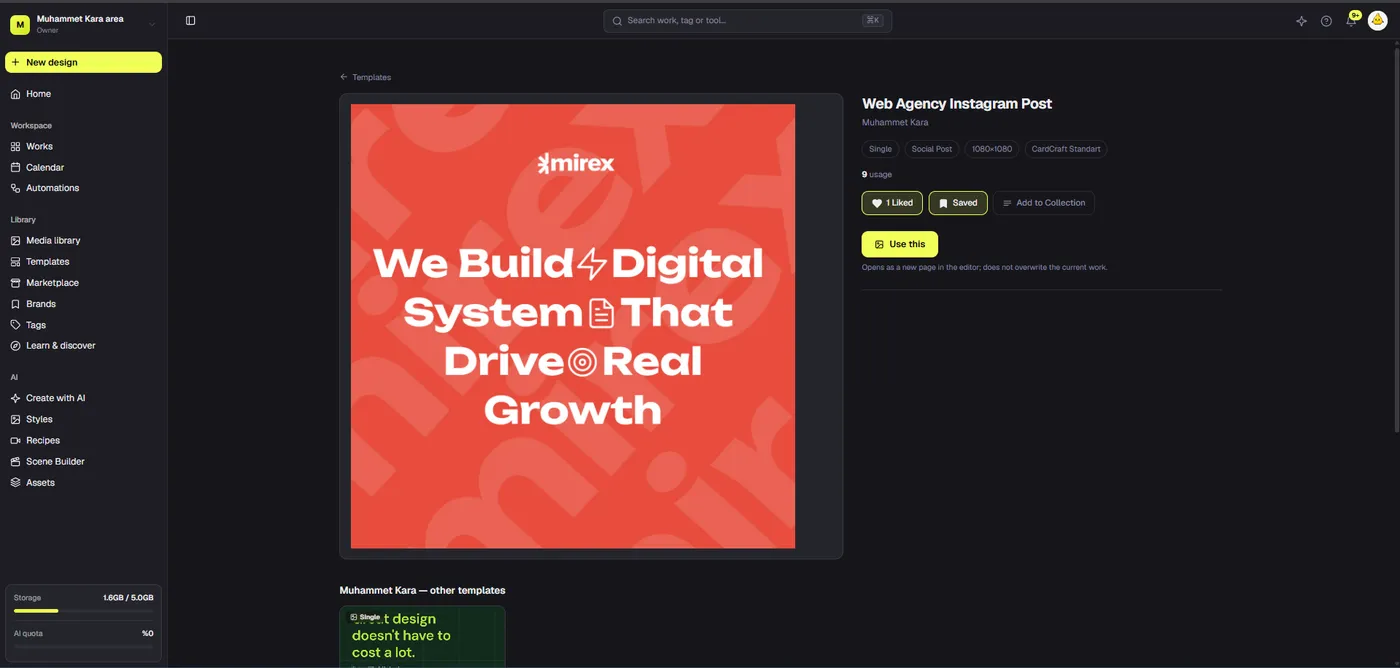
Use a simple asset matrix: asset name, format, purpose, version, approval owner, and where it appears in the deck. When a campaign spans multiple placements, put only representative variants in the main story and link to the full set. One slide per crop quickly becomes a catalogue rather than a presentation. Keep production detail in an appendix or supporting project part. Our article on social media templates explains how reusable source layouts can support repeated campaign outputs without flattening every design into a one-off image. The broader Dika Design site provides context for the marketing and production services around the product.
Choose transitions with restraint
Dika Studio slide decks support per-slide transitions and a presenter mode. A transition can signal a change of topic or make a sequence easier to follow. It should not delay the audience from reading a claim. Start with no transition or a simple, consistent preset. Rehearse the deck at the speed at which it will actually be presented. If a motion calls attention to itself but adds no meaning, remove it. The deck editor lets you set a transition and duration on a slide and apply a choice across the deck. Use that convenience for consistency, then make exceptions only where they earn their place.
Presenter mode opens a clean full-window stage. Move through slides manually, and keep speaking notes in a separate document because the current presenter surface does not include speaker notes or an on-screen timer. Rehearsal should include interruptions. Can the presenter skip to the budget or test design without losing the argument? Do slides still work if a video does not play? Can the audience read the key number when the room lighting is poor? These questions matter more than whether every slide has a dramatic effect.
Compare workflow choices before committing
Different deck workflows optimize for different outcomes. A fully manual deck gives close control but can cost time when the source material changes. A generic one-click AI deck may be fast but can invent structure or hide weak evidence behind polished placeholders. An AI-assisted editable deck aims to combine human judgment with faster drafting and revision. The right choice depends on whether the deck is a disposable brainstorm, a regulated external presentation, or a repeated campaign format. Use the table as a decision aid rather than a claim that one tool automatically guarantees results.
| Approach | Best fit | Main strength | Review burden |
|---|---|---|---|
| Manual slide design | High-stakes bespoke pitch | Precise composition and narrative control | Time-intensive production and revision |
| One-click AI deck | Early internal exploration | Fast initial structure | Heavy verification of facts, tone, and layout |
| AI-assisted editable deck | Recurring marketing reviews | Drafting support with human-led design | Explicit checks for every generated claim |
| Static PDF handout | Read-only distribution | Consistent viewing | Hard to revise as source material changes |
Dika Studio’s value here is not a promise to remove every step. Slide decks, editable canvas tools, project parts, and the AI assistant create a place for the team to perform those steps together. Choose the workflow that leaves the final argument easy to verify. If a campaign requires legal approval or exact technical language, add those reviewers before the presentation is exported.
Review the deck before sharing
Run three passes. First, a narrative pass: read only the slide headlines in order. Do they form a coherent argument and end with a specific decision? Second, an evidence pass: check every statistic, quote, product image, claim, date, and source. Third, a presentation pass: open the deck full-screen, rehearse timing, inspect contrast, and confirm that diagrams are legible without the presenter explaining every label. A deck can pass one review and fail the others. The final reviewer should know which pass they are responsible for, not simply be asked to “take a look.”
When exporting, verify the result in the destination application. Dika Studio can export slide decks to PPTX and PDF. The current PPTX path places each slide as a full-bleed image rather than preserving separate editable text and shapes in PowerPoint. PDF is likewise a rasterized handout. Keep the original Studio deck as the editable master, and treat exported files as presentation or distribution copies. This matters if a client expects to rearrange text later in PowerPoint. Explain the handoff format before delivery, and inspect the actual file rather than relying on its extension. The export reference details current behavior.
Build a repeatable presentation system
After one strong deck is approved, capture what should be reused: a slide-order pattern, brand styles, disclosure notes, chart rules, and the names of reviewers. Save source assets and a clean version of the deck. Do not clone a prior campaign so blindly that old results or product names survive into the next pitch. Start each new deck by replacing the decision statement and evidence checklist, then reuse only the layouts that support the new story. Version the brief and slide deck together so a later reviewer can see which source created which output.
A repeatable presentation system can reduce formatting work, but it should also make mistakes easier to catch. A template that asks for a source below every chart is more valuable than a template that only chooses colors. An AI prompt that forbids invented figures is more useful than one that asks for “a compelling story” with no evidence. For multi-format campaigns, connect the deck to adjacent design and video work inside Dika Studio, while keeping each approval explicit. The aim is faster, more reliable decisions, not more slides. The Dika Design homepage and our AI presentation maker guide can serve as entry points for teams planning that workflow.
Frequently asked questions
What should an AI presentation maker do for a marketing team?
It should help structure, draft, and revise a clear deck while leaving factual verification and final decisions to people. Dika Studio pairs slide decks with an AI assistant for supported canvas tasks.
Does Dika Studio create a complete deck from one prompt?
We do not claim a guaranteed one-click complete deck. Start from a slide part or template, then use the AI assistant for focused drafting and design edits.
Can I build slides and campaign graphics in one project?
Yes. A project can contain slide decks alongside design pages, boards, videos, and other parts, so related creative work stays connected.
What slide size does a new deck use?
A new slide part starts on a 1600 by 900 canvas. Check the destination screen or handoff requirements before final export.
Can I reorder slides?
Yes. The slide filmstrip supports adding, duplicating, reordering, and deleting slides; a list view helps with longer decks.
Does presenter mode include speaker notes?
No. The current presenter mode offers a clean full-window view with manual slide navigation, but no built-in speaker notes or countdown timer.
Can I export an editable PowerPoint deck?
Dika Studio exports a PPTX, but current export places each slide as a full-bleed image. Keep the Studio deck as the editable master if individual PowerPoint objects are required.
How should I use AI on performance slides?
Ask for clearer language or layout options, then verify every figure and source. Do not let AI invent results or blur estimates and observations.
Are transitions necessary in a campaign deck?
No. Use them only when they improve sequence or emphasis. Rehearse with transitions and remove any that slow comprehension.
What should I check before sharing a deck?
Review headline logic, claim sources, image accuracy, legibility at presentation size, export behavior, and a specific final decision request.